FAQ
Startup Issues
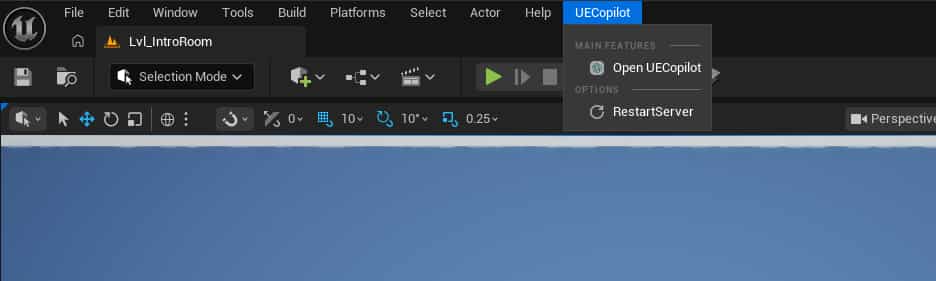
Service startup failed, unable to open plugin page Close the plugin UI, then go to the UE5 menu bar: UECopilot -> RestartServer to restart the server. Then try opening the plugin page again. If it still doesn't respond, try restarting the UE5 editor.
Chat Interruption or Stalling
During a conversation, if the dialogue is abnormally interrupted or stalls, you can type "continue" in the input box to resume the current conversation (each session has historical memory; please create a new conversation task for new tasks).
Plugin Update
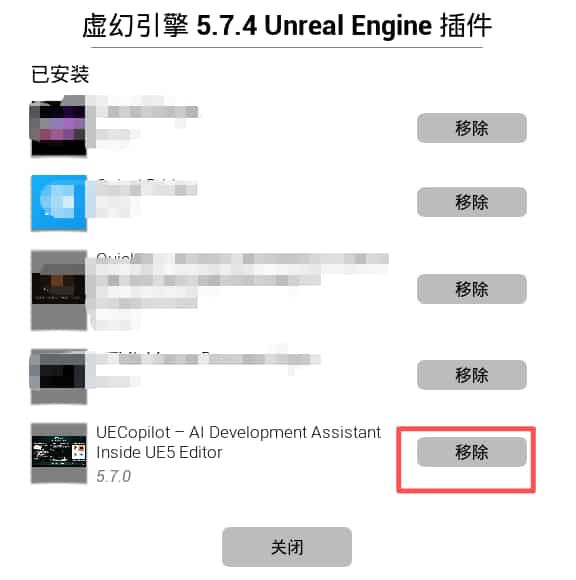
- Remove the old version of the plugin in the UE Launcher
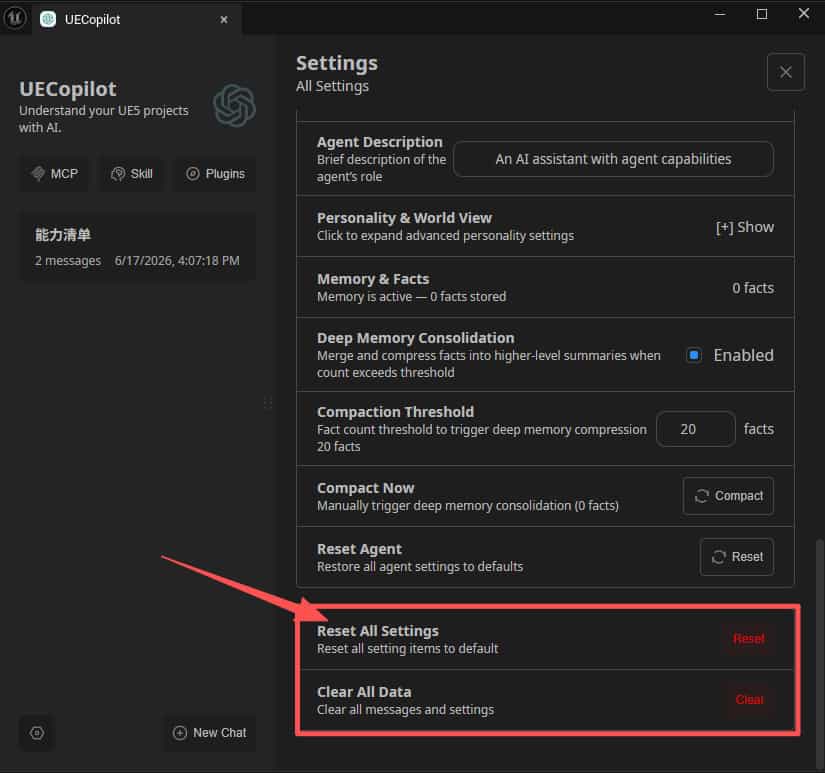
- Click the "Reset Configuration" button in the plugin chat settings (if you encounter chat history and configuration errors after a major plugin version update, please refer to the following steps to fix)
Operation Issues
Q: Changes to Blueprint did not take effect
- Check whether the
savedfield in the returned JSON istrue - Manually save the asset in the editor (Ctrl+S)
- Reopen the Blueprint graph to view changes
Q: Blueprint compilation error
4. Use the validate_blueprint tool to view specific error details
5. If a snapshot is available, use restore_graph to restore
6. Or use Ctrl+Z in the editor to undo
Q: AI cannot find the specified Blueprint
7. Ensure the Blueprint name is correct (case-sensitive)
8. Use the list_blueprints tool to view all available Blueprints
9. Level Blueprint needs to be referenced by map name
Known Limitations
Unsupported Scenarios
- C++ Code Operations: Can only operate on Blueprints and assets; cannot create or modify C++ code files
- Runtime Debugging: Does not support debugging features such as breakpoints or step execution
- Multi-User Collaboration: No concurrency control mechanism; not suitable for multiple users operating the same Blueprint simultaneously
- Content Migration: Cross-project content migration is not supported
- Source Control Integration: Does not directly interact with Perforce/Git/SVN
- Packaging and Building: Does not support packaging, baking, or other build processes
- Level Editing: Does not directly support Actor placement and editing in levels (planned)
- Data Table Operations: Editing of DataTable/CurveTable is not currently supported
- Niagara System: Operations on Niagara particle systems are not supported
- UI/UW Editing: Editing of Widget Blueprints is not supported
Security Boundaries
Capability Overview
Overview Data
Type Support Coverage
Conclusion
UECopilot's goal is to make AI a trusted co-pilot for UE5 developers — not to replace your judgment, but to help you complete repetitive tasks faster, reduce human error, and maintain accuracy and traceability in large-scale projects.
Recommendations for Users:
- Start small: Try it on simple Blueprints first
- Use snapshots: Take a snapshot before any major operation
- Gradual usage: Progress from reading → simple modifications → complex creation
- Provide feedback: When encountering issues, please provide detailed logs to help the plugin improve continuously
UECopilot - Empowering Unreal Engine development with AI wings